
Star Trek Online Quests Guide: Find Your Next Mission
Use this Star Trek Online quests guide to find missions, follow episode arcs, travel with transwarp, replay gear rewards, and tackle TFOs and daily events.
Jump to
Finished the tutorial and suddenly have no idea where your captain should go? This Star Trek Online quests guide walks you through finding your next mission, reaching its starting location, and collecting the rewards that keep your crew moving forward. Start with the Mission Journal, then branch into patrols, cooperative operations, and events when you want a change of pace.
How to Find and Start Your Next Mission
Star Trek Online calls its quests missions, and its main story adventures are organized into Episodes. On PC, press J to open the Mission Journal, then select the Episodes tab.
To pick up your next story mission:
- Open the episode arc you are currently following.
- Select the next available mission.
- Click Hail to open the mission briefing.
- Accept the mission.
- Look beneath the minimap for the objective and travel controls.
Each episode arc groups missions into a connected story. Follow the journal’s sequence to move between assignments without hunting down a new quest giver after every adventure.
If your objective tracker is empty, return to Episodes and accept another mission. If you already accepted one but need to review it, open In Progress. That tab lets you inspect active assignments, view their rewards, and drop missions you no longer want to keep.
For players starting on PC, these are the relevant access and control options:
| PC Feature | Details |
|---|---|
| Operating system | Windows |
| Pricing model | Free To Play |
| Controller support | Full controller support |
The keyboard shortcuts in this guide refer to the PC interface.
Official page: Star Trek Online (playstartrekonline.com)
Follow Your Faction’s Episode Order
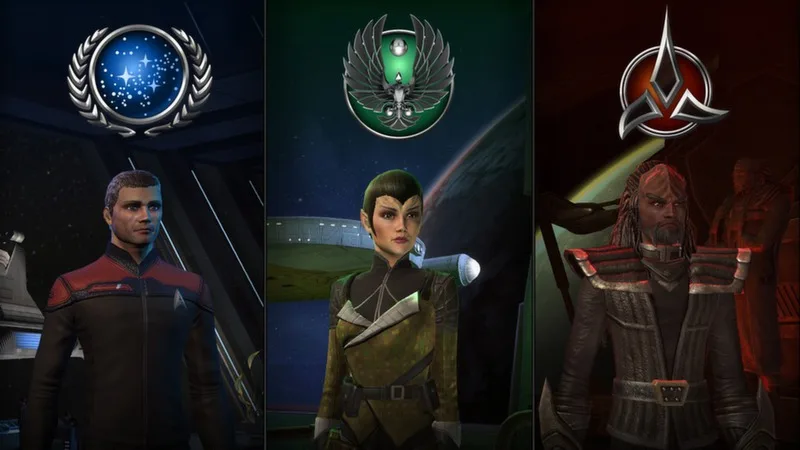
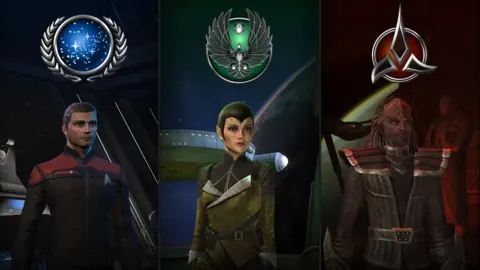
Your opening assignments depend on the character you created. Modern Starfleet, TOS Starfleet, Discovery Starfleet, the Klingon Defense Force, the Romulan Republic, and the Dominion have different starting experiences.
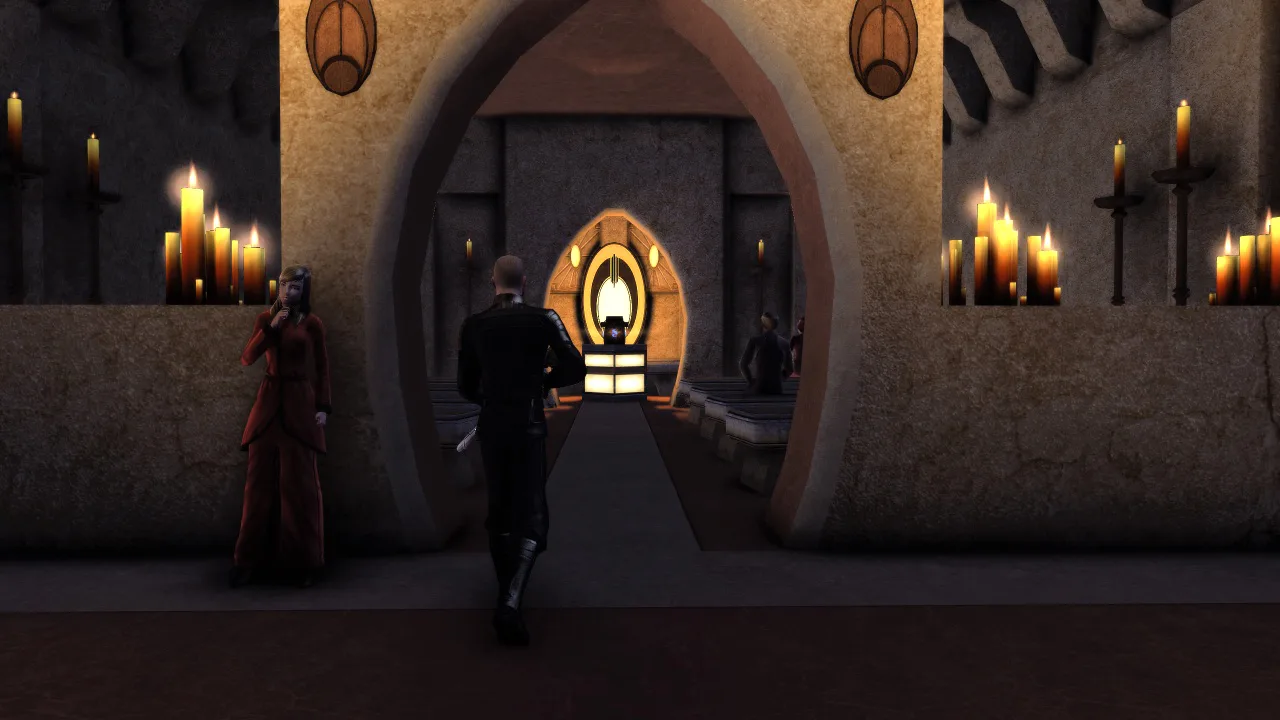 Image: Steam / Cryptic Studios
For a modern Starfleet captain, early assignments include reporting to Admiral Quinn at Earth Spacedock. Complete that introductory business before trying to jump ahead through the journal.
Play your opening arc in order on a new character. It introduces your faction’s situation while giving you time to learn space combat, ground combat, and mission navigation.
How Skipping Missions Works
Many episode entries have a Skip button that unlocks the following mission. Use it when you want to move past an assignment or reach another part of the story.
Some introductory missions cannot be skipped. If the button is unavailable, complete the required opening assignment before continuing.
Skipping also does not award the mission’s gear. Read its reward panel before passing it over, especially if you are looking for a particular weapon, shield, or console.
Returning With a High-Level Character
A Jem’Hadar character starts at level 60, with equipment and Bridge Officers prepared for high-level content. That offers a quick route into later adventures, but it also puts more systems in front of you immediately.
If you return to an existing captain, review the In Progress tab before accepting several new episodes. Choose the storyline you want to continue and use its mission briefing to reestablish your next destination.
Travel With Transwarp and Understand the Map Layers
An accepted mission can provide a Transwarp control beside its tracker entry. Use it to jump to the mission’s starting location rather than flying the entire route through sector space.
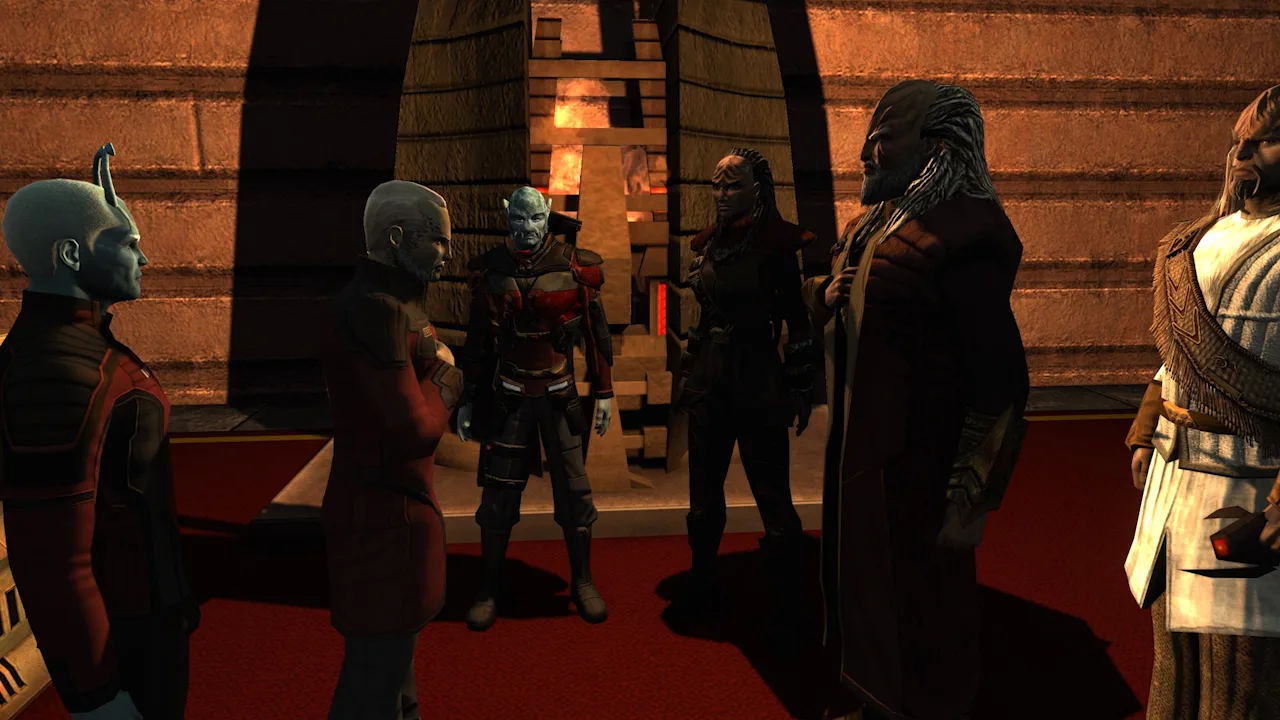 Image: Steam / Cryptic Studios
You can also use Auto-Navigate to travel toward the objective. Open the larger map from the minimap to see the area you are currently exploring and locate your destination.
Arriving near the right system is only part of the trip. Navigation moves through three distinct environments:
- Sector space: The large travel map connecting star systems and regions.
- System space: The local space around a planet, station, or other destination.
- Ground maps: Locations where you control your captain on foot, including stations and planetary surfaces.
For example, traveling from Earth Spacedock to another station can involve beaming to your ship, leaving the Sol system for sector space, flying to the destination, entering its local map, and approaching the station to beam aboard.
Read the current objective after each transition. A mission can require you to enter a system, approach a location, or speak to someone on the ground.
If the destination seems correct but nothing is happening, check whether your objective points to a different map layer. Being in the Sol system and standing inside Earth Spacedock are separate stages of the journey.
Claim Mission Rewards and Replay Episodes for Gear
Finishing the final encounter does not always clear an assignment from your journal immediately. You still need to complete the reward dialogue.
 Image: Steam / Cryptic Studios
When a mission is ready to turn in:
- Open the completion prompt.
- Review the guaranteed rewards and any selectable items.
- Choose your reward when a selection is required.
- Finish the dialogue to clear the completed assignment.
If the reward window does not open automatically, click the completed mission’s icon in the tracker to bring it up.
Pay attention to “choose one” rewards. A panel showing several weapons or equipment pieces does not necessarily mean you receive all of them.
Replay With a Specific Reward in Mind
Completed episodes can be replayed to collect additional equipment rewards. This is useful when a mission offers several items you want or a weapon that fits your ship’s setup.
Before starting another run, inspect the reward selection and identify the item you are pursuing. Replay that mission for a clear equipment goal rather than collecting replacements you will not equip.
For a straightforward energy-weapon setup, collect weapons of the same damage type and pair them with tactical consoles that boost that type. For example, phaser weapons work with consoles that increase phaser damage.
Keep the distinction between your two loadouts in mind: a strong ship shield will not help your captain survive a ground encounter.
Prepare Your Ship and Away Team for Harder Missions
If a later episode becomes difficult, inspect your equipment and Bridge Officer stations before abandoning the storyline.
Check Your Ship’s Equipment and Abilities
Open the character window and select your ship. You can replace equipment by dragging an item into a compatible slot or selecting the slot and choosing an available item.
Prioritize these checks:
- Replace outdated weapons and defensive equipment with suitable mission rewards or drops.
- Match tactical consoles to the weapons you actually use.
- Assign Bridge Officers to your ship’s available stations.
- Put their active abilities on your action tray.
- Save your ship loadout while in space.
For an energy-weapon ship, increase weapon power to support your beams or cannons. Avoid treating that setting as a universal prescription for every specialized build.
Bridge Officer station rank determines which ability ranks are available. An Ensign station provides access to the officer’s Ensign ability; a Commander station can provide access to all four space ability ranks. Teaching an officer a higher-rank ability does not expand the station itself.
Give Your Away Team Support
Bridge Officers also bring ground abilities into away-team missions. Training manuals let you teach them additional skills, including healing, defensive support, and attacks.
Include a Science officer with healing abilities if your team struggles to stay alive. Use Engineering support such as turrets or shield restoration alongside your offensive officers.
Keep your captain’s armor, personal shield, weapons, and kit modules current. Pull smaller groups of enemies instead of charging into several groups at once.
After arranging your abilities, lock the action tray so a misplaced drag during combat does not remove an important button.
Use Patrols and TFOs Between Story Missions
Episodes provide the narrative path, but they are not your only mission format.
Patrols are short, solo-friendly assignments suited to a quick gaming session. Find them at certain planets in sector space or through the Patrols tab in the TFO menu.
Task Force Operations, usually shortened to TFOs, are cooperative activities generally built for five players and typically taking about 15 minutes. Their rewards include currencies used in Reputation and Fleet progression.
To join a TFO:
- Open the Task Force Operations menu.
- Select an operation.
- Review its description and rewards.
- Check Join to enter its queue.
- Select Ready when the confirmation appears.
The list distinguishes space and ground operations, so choose the combat format you want to practice. Read the operation’s objectives and work with the team once you enter.
Random Queues and Reputation Marks
The Random button places you into an eligible TFO queue and offers bonus rewards. Normal difficulty is the default; use the difficulty dropdown when you are ready to change it.
Choose a specific operation when you want to inspect its listed rewards before queuing. Reputation Marks feed into projects in the Reputation tab, where progression opens access to specialized equipment.
Keep these systems separate in your planning: completing an episode advances its story, while running TFOs supports a repeatable cooperative reward loop.
Track Event Progress and Account-Wide Endeavors
Open the Mission Journal’s Events tab to see the featured activities and daily progress requirements. The event panel lists which content counts, and you can launch the featured activity directly from its row.
Before spending a session repeating an activity, check whether you have already met that event’s daily requirement. Once you complete the overall requirement, return to the event interface and claim the reward.
Event rewards can include weapons, consoles, pets, and starships. Events also offer buyout options, with the price adjusted for progress already earned. Check the Second-Chance tab for eligible past rewards, and review the Event Campaign panel when planning campaign participation.
Endeavors provide another set of daily goals. Their interface appears on the HUD on PC and in the Captain’s Menu on console. Endeavor Perks improve ground and space performance across your account, benefiting every captain on your roster.
Look at your Endeavor objectives before choosing a patrol, TFO, or episode. When an objective matches the combat you already intend to play, work on it during that session.
Continue with
 Star Trek Online Temporal Probe Locations: Full GuideFind Star Trek Online temporal probe locations across story missions, check alternate spawns, and collect the data needed for Temporal Recruit rewards.
More in Quests
Star Trek Online Beyond the Nexus Mission Walkthrough
Complete Star Trek Online Beyond the Nexus mission with a step-by-step walkthrough covering ship battles, security puzzles, rewards, and both accolades.
Star Trek Online Endeavor Harvest Materials Space: Guide
Star Trek Online endeavor harvest materials space guide: find patrol nodes, plan a six-node route, and collect materials while avoiding unnecessary combat.

Star Trek Online Fastest Patrol: Quick Runs and Rewards
Find your Star Trek Online fastest patrol routine with Wanted at Argala, direct-launch steps, daily rewards, and tips for efficient solo ship mastery runs.
Star Trek Online Learning the Lore of the Empire Walkthrough
Star Trek Online Learning the Lore of the Empire walkthrough: find Ch'toh, locate the quiz console, answer the history question, and collect daily rewards.
Continue exploring
Join the community
Official channels for news, updates and player help: