
Star Trek Online Walkthrough: From Tutorial to Endgame
Use this Star Trek Online walkthrough to finish the tutorial, find story missions, equip your ship, train bridge officers, and begin endgame progression.
Jump to
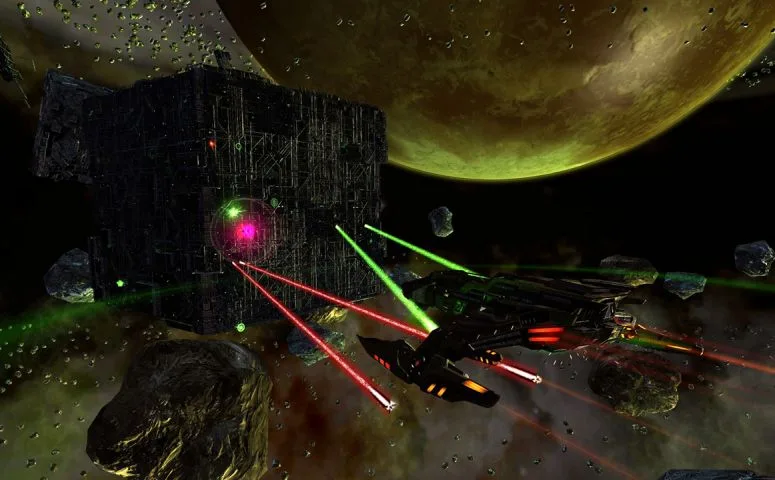
Complete Your Faction’s Opening Missions
Your first command starts with a training mission, but finding your next assignment takes a little more navigation. This Star Trek Online walkthrough takes you from your faction’s opening missions through story progression and into endgame activities. Learn the mission journal early, and you can spend more time exploring instead of searching menus.
Before creating your captain, keep two practical details in mind:
- The game is free to play, with optional in-app purchases.
- The Windows version supports full controller input; the keyboard shortcuts below apply to PC.
Choose Your Captain and Follow the Tutorial
- Choose your faction and starting era. Standard Starfleet begins in 2409. TOS Starfleet and Discovery Starfleet have their own era-specific openings, while Klingon and Romulan characters begin with different faction stories.
- Select your career. Tactical, Engineering, and Science determine your captain abilities and career-specific ground options. Your career does not restrict you to a particular starship category.
- Follow the objective markers and tutorial prompts. These introduce ground movement, space combat, interactions, and your ship’s controls.
- Continue through the entire opening sequence. Some starting experiences include additional story missions before opening into the wider galaxy.
These are the opening mission sequences for standard Starfleet, Klingon Defense Force, and Dominion characters:
| Starting route | Mission order |
|---|---|
| Starfleet, 2409 | Graduation Day → Training Cruise → Field Promotions → Communication Breakdown → Assimilation of the Innocent |
| Klingon Defense Force | End of Watch → Red Alert! → Intruder Alert! → Challenge for Command! → Take Command → Your New Command → Journey to Qo'noS |
| Dominion introduction | Hunt → Ceremony → Turn the Tide |
Tutorials award your initial bridge officers and establish how your captain gains command. They are not repeatable. After completing a tutorial on another character, you can use the available skip option to take an accelerated opening route.
Dominion characters work differently: Jem’Hadar begin at level 60 with equipment and bridge officers prepared for high-level play. Their introductory arc, Engineered for War, cannot be skipped. Choose another starting route if you want the gradual introduction to basic controls.
Official page: Star Trek Online (playstartrekonline.com)
Report to Your Faction Hub
Once your opening missions send you to a hub, finish that assignment before collecting unrelated missions. For a standard Starfleet captain, this means visiting Earth Spacedock and speaking with Admiral Quinn.

- Read your tracked objective. It identifies the location or contact needed to advance.
- Travel to the destination system. Use the map’s navigation option, or select mission transwarp when available.
- Enter the system and approach your destination. Arriving in sector space does not automatically place you aboard a station.
- Beam aboard and meet your contact. At Earth Spacedock, Admiral Quinn’s office is behind the waterfall.
- Complete the introductory assignment. Welcome to Earth Spacedock is an early mission that cannot be skipped.
Learn the Services You Will Use
At Earth Spacedock, locate these services before heading out again:
- Shipyard: Claim eligible ships and switch your active vessel.
- Bridge officer trainer: Purchase manuals that teach your officers additional abilities.
- Bank and mail terminals: Store items and handle messages or deliveries.
- Exchange: Buy and sell items with other players.
- Ship customization and character tailor: Adjust your vessel’s appearance or your captain’s outfit.
Use mission rewards and equipment drops while learning your loadout. Save purchases for items you can identify and use.
Accept and Finish Your First Story Episodes
On PC, press J to open the mission journal, then select Episodes. Each story arc contains a sequence of missions.
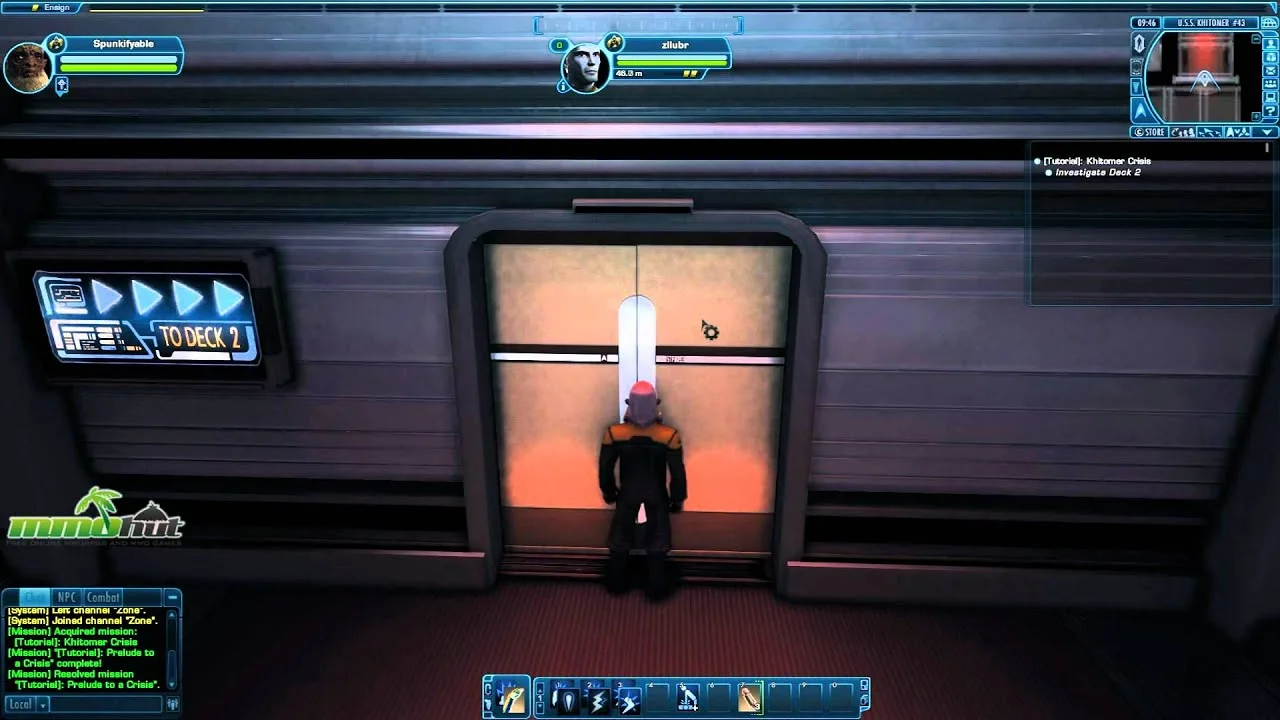
- Open the earliest available arc for your character.
- Select the next unfinished episode and choose Hail.
- Accept the mission. Its objective should appear in your mission tracker.
- Select the mission’s travel option. Use auto-navigation to fly there or transwarp when the mission offers it.
- Enter the mission location and follow the current objective.
- Finish the assignment and claim its rewards.
For standard Starfleet progression, Diplomatic Orders is an early assignment in Klingon War. Continue through that arc before moving to Romulan Mystery if you want to follow the journal’s story sequence.
The journal also includes Skip options that unlock subsequent episodes. Play through the sequence on your first captain to keep the story connected; some introductory assignments still require completion.
Understand the Three Travel Layers
Travel becomes easier once you recognize which map you are on:
- Ground: Your captain is walking aboard a station, ship, or planet.
- System space: Your starship is inside a particular system.
- Sector space: Your ship travels between systems across a quadrant.
To leave Earth Spacedock for another station, beam to your ship, exit to sector space, travel to the destination system, enter it, then approach the station and beam aboard.
Recover a Missing Objective
If your tracker is empty, open Episodes and accept your next assignment. If you have already accepted it, check In Progress to review its objectives and rewards.
When a completed mission remains in the tracker, open its completion window. Select a reward when prompted and finish the turn-in to clear the assignment. Completing the final encounter and claiming the mission reward are separate steps.
Equip Mission Rewards Before the Next Assignment
After claiming rewards, inspect both your captain and your ship. Ground equipment and starship equipment occupy separate slots.
 Image: Steam / Cryptic Studios
- Open the character window. The default PC shortcut is U.
- Select your captain or active ship.
- Compare the new item with the equipped item. Check its stats, Mark, and level requirement.
- Equip it by dragging it into the appropriate slot, or select the slot and choose a compatible item.
- Review your ability tray. New kit modules and other equipment can add activated powers.
- Lock the tray after arranging it to avoid dragging abilities away during combat.
Higher Marks represent increasing equipment levels, while rarity affects an item’s modifiers. Compare the actual benefits before replacing gear solely because its color looks better.
Prepare Your Ship
For an early ship using energy weapons, raise weapon power to improve their performance. Choose the remaining power distribution around the systems you use.
Match consoles to their slots: Tactical consoles go in Tactical slots, Science consoles in Science slots, and Engineering consoles in Engineering slots. Universal consoles can occupy these console categories.
Make ship equipment changes while in space, then open Loadouts and save the configuration. Each ship includes two loadout slots. Resave after making changes you intend to keep.
Prepare Your Away Team
Check your captain’s armor, personal shield, weapons, and kit modules. Your ground setup has its own abilities and equipment, so improvements to your starship do not replace ground preparation.
Arrange ground equipment while on a ground map. Ground equipment does not use the ship loadout saving system.
Claim Leveling Ships and Assign Your Bridge Officers
You receive free ship tokens at levels 10, 20, 30, and 40. Return to your faction’s ship vendor when you reach those milestones.
- Open the ship vendor’s selection window.
- Find the ships available for your token. Other vessels in the window can require different currencies.
- Compare the ship category and bridge officer stations.
- Claim your chosen vessel and make it active.
- Review its equipment and assign officers to its stations.
- Arrange the resulting abilities and save the ship loadout.
Try different ship categories as you level to learn how cruisers, escorts, and science vessels handle.
If you already own a T6 starship, you can fly it after completing the tutorial. Its scaling lets you continue using it as your captain advances.
Train and Activate Officer Abilities
Bridge officers provide the powers available through your ship’s stations. Match an officer’s career to the station’s requirements.
To change an officer’s abilities:
- Visit a bridge officer trainer and purchase the appropriate training manual.
- Select the officer in your character window and open their skills.
- Teach the ability, promoting the officer with Expertise if required.
- Return to Stations and select the learned ability for an eligible station slot.
- Put the ability where you want it on your tray.
Learning an ability does not automatically make it active. Check the Stations tab after training. The station’s rank also limits which ability ranks you can use, even when an officer knows additional powers.
Start Duty Officer Assignments and Research
At level 11, the duty officer system introduces the crew working behind the scenes. These officers are separate from the bridge officers assigned to your ship’s stations.
- Respond to the introductory hail and collect your starter duty officers.
- Open the duty officer window and review available assignments.
- Assign crew who meet each assignment’s requirements.
- Check required supplies before starting.
- Collect completed assignments and start replacements.
Assignments run over real time, including while you are offline. Their rewards can include experience, Energy Credits, Dilithium, and additional duty officers.
Some duty officers also provide combat effects when placed on your active space or ground roster. Read their descriptions and select effects that match the weapons or abilities you use.
At level 15, begin Research & Development:
- Open the R&D section of the duty officer window.
- Select a research school.
- Start its research XP project.
- Collect the completed project and repeat.
Reaching level 15 within a research school unlocks its associated personal trait. That research level is separate from your captain’s level.
Build Your Level 50–65 Progression
Keep playing episodes while adding the systems that unlock during later leveling. These provide equipment, passive bonuses, and assignments beyond the main story.
| Captain level | System | What to do |
|---|---|---|
| 50 | Reputations | Earn the relevant marks and start reputation projects |
| 50 onward | Specializations | Spend specialization points and select active specializations |
| 52 | Admiralty | Send ship cards on assignments |
| 60 | Endeavors | Complete listed objectives for account-wide progression |
| 65 | Level cap | Continue developing equipment, reputations, and specializations |
Begin Reputation Projects
- Open your character status window and select Reputations.
- Review the equipment and traits associated with each reputation.
- Earn the marks needed for your chosen projects.
- Slot and complete the daily projects.
- Check an equipment project’s full costs before committing resources.
Reputation equipment can require marks, Expertise, Energy Credits, and refined Dilithium. Refine earned Dilithium Ore before trying to spend it.
Select Specializations and Run Admiralty
Choose a primary specialization and a secondary specialization to activate their available benefits. Specialization points continue beyond the level cap, so progression carries on after level 65.
At level 52, open Admiralty and select an assignment. Combine ship cards to meet its Tactical, Engineering, and Science requirements, then launch the assignment. Ships acquired during leveling contribute cards to this system.
Complete Personal Endeavors
At level 60, check the Endeavor interface for daily objectives. Complete tasks with equipment and activities that satisfy their requirements, then spend earned perk points on the available bonuses.
Endeavor perks apply across your account, benefiting your other captains as well.
Branch Into Patrols, TFOs, and Events
Once you can navigate, manage equipment, and use your officers’ abilities, add activities alongside your episode progression.
Play a Short Patrol
- Open the TFO menu and select Patrols, or visit a patrol location in sector space.
- Choose a mission and enter.
- Complete its objectives and collect the rewards.
Patrols suit short solo sessions. Use them to practice a new ship setup before returning to a longer story assignment.
Join a Task Force Operation
TFOs are cooperative activities for five players, typically taking about 15 minutes.
- Open the Operations menu and select a TFO.
- Read its description and reward information.
- Select its Join checkbox to enter the queue.
- Wait for the group confirmation.
- Select Ready when prompted.
Start with Normal difficulty while learning the objectives. The Random option places you into an eligible operation seeking players and awards bonus rewards.
Make Event Progress and Claim the Reward
Open Events in the mission journal to see the featured activities and progress requirements.
- Select qualifying content from the event interface.
- Complete the activity to earn progress.
- Return on subsequent eligible days until you meet the requirement.
- Reopen the event interface and claim the reward.
Rewards can include weapons, consoles, pets, and starships. Check the Event Campaign interface separately for campaign progress and its reward requirements.
With Undiscovered, Deep Space Encounters also offer short, randomized activities in sector space. Look for their golden hexagon icons on the area map or compass, approach one, and enter. Pick up the daily wrapper mission from Available before running encounters for its additional Endeavor XP.
Continue with
 Star Trek Online Beyond the Nexus Mission WalkthroughComplete Star Trek Online Beyond the Nexus mission with a step-by-step walkthrough covering ship battles, security puzzles, rewards, and both accolades.
More in Quests
Star Trek Online Endeavor Harvest Materials Space: Guide
Star Trek Online endeavor harvest materials space guide: find patrol nodes, plan a six-node route, and collect materials while avoiding unnecessary combat.

Star Trek Online Fastest Patrol: Quick Runs and Rewards
Find your Star Trek Online fastest patrol routine with Wanted at Argala, direct-launch steps, daily rewards, and tips for efficient solo ship mastery runs.
Star Trek Online Learning the Lore of the Empire Walkthrough
Star Trek Online Learning the Lore of the Empire walkthrough: find Ch'toh, locate the quiz console, answer the history question, and collect daily rewards.
Continue exploring
Star Trek Online Science Build 2026: EPG Setup Guide
Create your Star Trek Online science build 2026 with Gravity Well, exotic torpedoes, budget gear, and key upgrades. Learn which skills and traits to slot.
Star Trek Online Beginners Guide 2026: Your First Steps
Star Trek Online beginners guide 2026: choose your faction, claim free ships, improve combat, and learn which currencies and systems deserve your time.
Join the community
Official channels for news, updates and player help: