
Star Trek Online Beginners Guide 2026: Your First Steps
Star Trek Online beginners guide 2026: choose your faction, claim free ships, improve combat, and learn which currencies and systems deserve your time.
Jump to
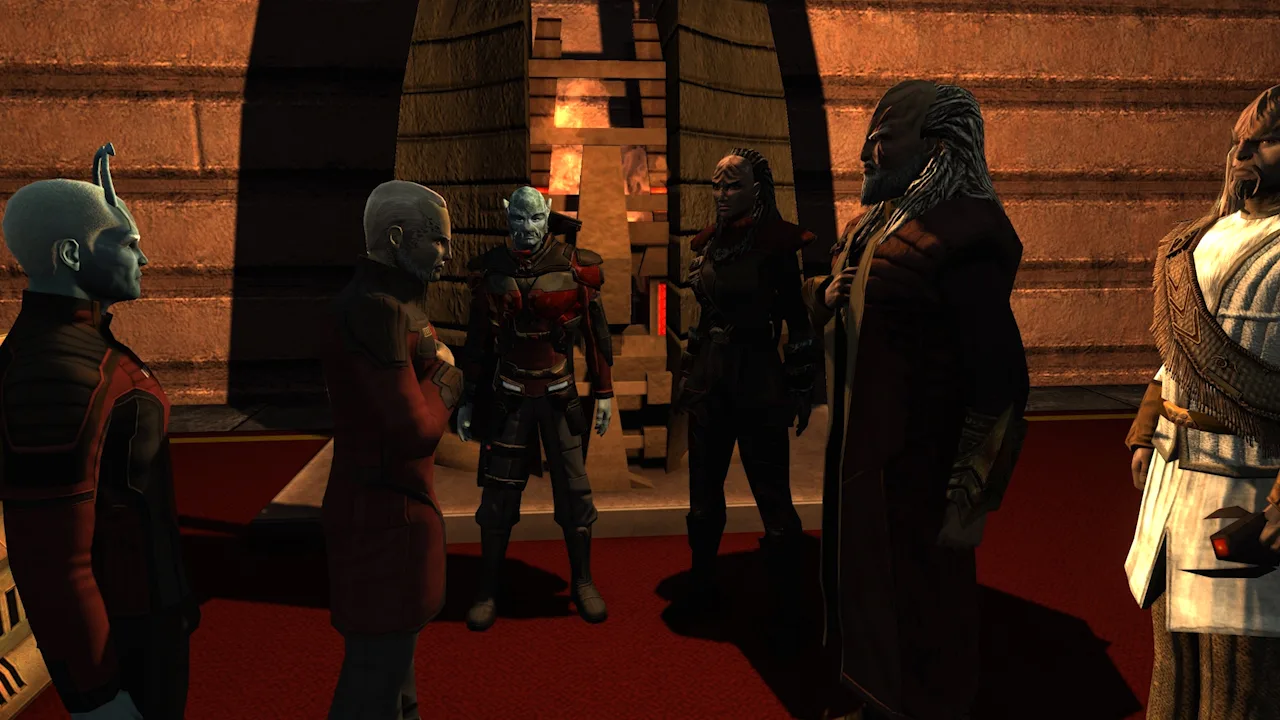
Early Game: Choose Your Captain
Your first command comes with a starship, a crew, and a surprisingly crowded interface. This Star Trek Online beginners guide 2026 walks you through character creation, missions, combat, and progression to level 65. Learning how those systems connect makes it easier to find your next adventure and keep your ship ready for it.
1. Pick a faction for the adventure you want
Star Trek Online is free to play on Windows and supports full controller input. You can download Star Trek Online on Steam to begin.
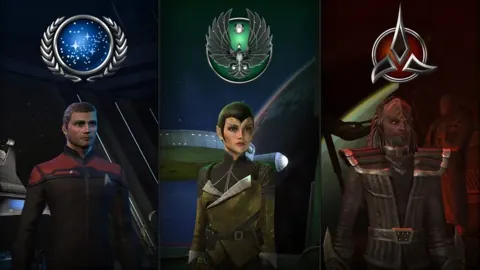
Your faction determines your opening story and starting surroundings. These are the main character options:
| Starting faction | What to expect | Allegiance |
|---|---|---|
| Starfleet | A Federation adventure with Earth Spacedock as its main hub | Starfleet |
| Klingon Defense Force | A Klingon Empire opening, with First City as its main hub | Klingon Defense Force |
| Romulan Republic | A Romulan and Reman storyline, with New Romulus Command as its main hub | Choose Starfleet or Klingon Defense Force |
| TOS Starfleet | An opening set in The Original Series era | Starfleet |
| DSC Starfleet | An opening set in the Discovery era | Starfleet |
| The Dominion | A Jem'Hadar captain starting at level 60 | Choose Starfleet or Klingon Defense Force |
Choose standard Starfleet if you want to follow the Earth Spacedock route described below. Pick TOS or DSC Starfleet for their era-specific introductions and visual effects.
For a gradual introduction to the game's systems, start with a character who levels through the early story before trying the Dominion's level-60 opening.
2. Choose your career separately from your ship
Your captain's career gives you distinctive abilities. It does not assign you a mandatory ship category.
- Tactical: Damage-focused captain abilities and ground powers built around offensive buffs and attacks.
- Engineering: Power management and survivability in space, with ground tools such as turrets, drones, and protective equipment.
- Science: Space utility and debuffs, with ground options that include healing, control, and damaging kit abilities.
A science captain can fly a cruiser, and a tactical captain can fly a science vessel. Choose the captain abilities you want to use, then experiment with ships as you level.
Species also have traits. Read those bonuses during character creation, but keep your attention on a character you want to play rather than trying to solve an endgame build before the tutorial.
Early Missions: Find Your Objective and Travel There
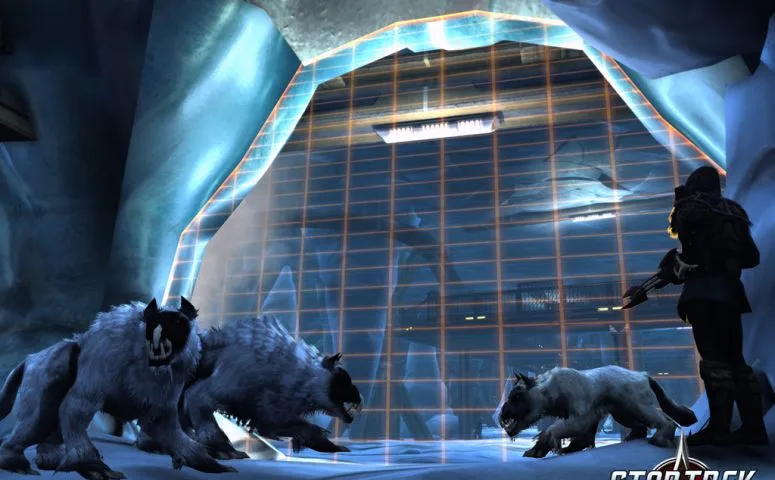 Image: Steam / Cryptic Studios
3. Use the mission journal when the trail goes cold
After the tutorial and your faction's opening sequence, open the mission journal near the minimap. The episode list gives you a clearer route through the story than accepting every available contact's assignment.
Follow this sequence:
- Open the episode list.
- Select the next mission in your current story arc.
- Hail the contact and accept it.
- Use the mission tracker to travel to its starting location.
- Complete the mission and claim its rewards.
Keep your first playthrough in episode order. Skipping ahead can leave you juggling several arcs while you are still learning navigation and equipment.
Use the In Progress tab to inspect accepted missions. If a completed mission remains in your tracker, open its completion window and choose any required reward to finish turning it in.
4. Understand the three map layers
Travel becomes much easier once you separate these spaces:
- Sector space: The large travel map connecting systems and destinations.
- System space: The local area around a planet, station, or mission location.
- Ground maps: Places where you control your captain on foot.
To travel from Earth Spacedock to another station manually, beam to your ship, leave the local system for sector space, navigate to the destination, enter its local map, and approach the station to beam aboard.
For missions, use auto-navigation or the mission's Transwarp option when available. Mission Transwarp takes you to the mission's starting destination without requiring the full sector-space trip.
Use the scanner when an objective is difficult to locate. It helps point you toward mission interactions and nearby crafting materials.
Ships and Bridge Officers: Put Your Crew to Work
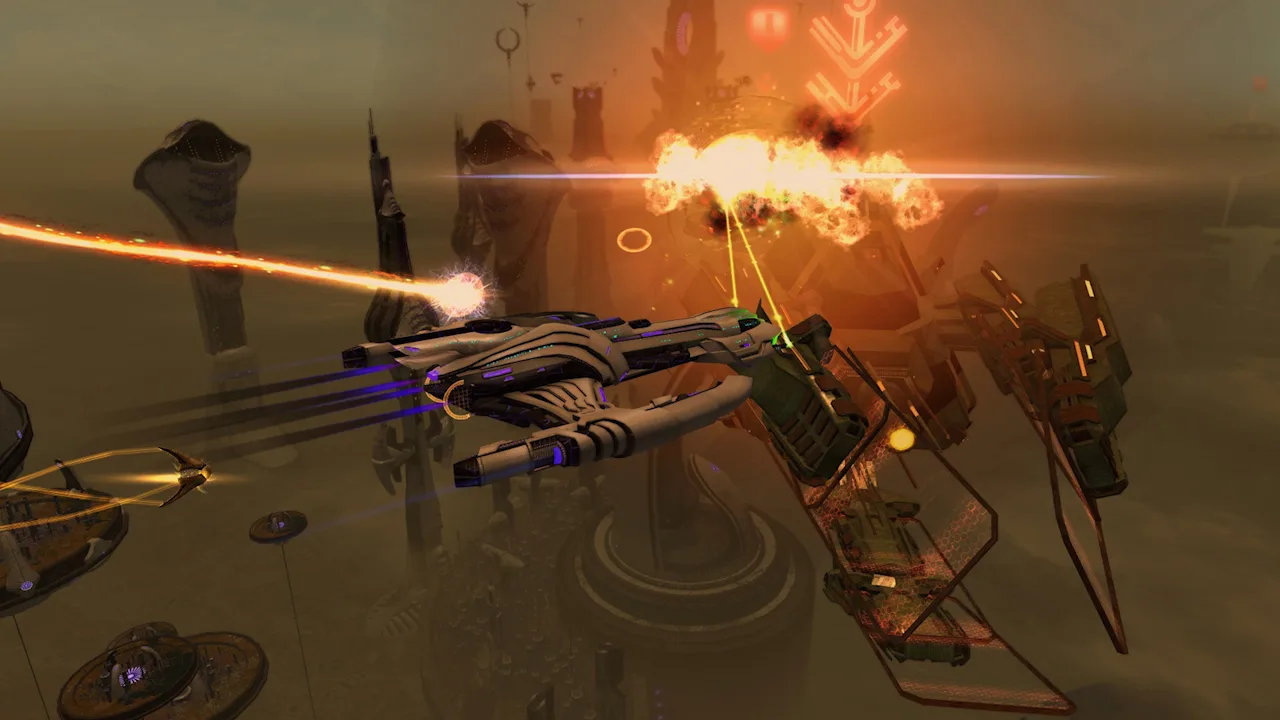 Image: Steam / Cryptic Studios
5. Claim your leveling ships before shopping
You receive free ship tokens at levels 10, 20, 30, and 40. Visit your faction's ship vendor to spend them on eligible ships.
For Starfleet characters, the shipyard at Earth Spacedock handles ship acquisition and switching your active vessel. A nearby ship tailor lets you customize its appearance.
Try different categories as those tokens become available:
- Cruisers
- Escorts
- Science vessels
Experiment with how they handle before committing resources to a premium ship. Check the bridge officer stations during selection, since those stations determine which officer abilities you can use aboard that vessel.
Do not assume every ship in the vendor window accepts your free token. Check its listed cost before confirming.
6. Fill your stations and select the abilities you trained
Bridge officers supply many of your ship's combat powers. Commissioning an officer adds them to your crew; assigning them under Stations puts them to work aboard your current ship.
To set up a new ability:
- Check the career and rank of the ship station you want to fill.
- Assign a compatible bridge officer.
- Purchase the appropriate training manual from a bridge officer trainer.
- Open that officer's skills and teach the ability.
- Promote the officer if required.
- Return to Stations and select the newly learned power.
Learning an ability does not automatically select it for your ship. Check Stations afterward, then place the power somewhere accessible on your ability tray.
Read the manual's rank requirement directly. A station's rank limits which powers are available there, even if your officer knows higher-rank abilities.
Combat: Fix the Basics Before Chasing Expensive Gear
 Image: www.playstartrekonline.com
7. Raise weapon power for an energy-weapon ship
If your starter ship relies on phasers or other energy weapons, raise its weapon power rather than leaving everything evenly balanced. More weapon power improves those weapons' effectiveness.
Use the expanded power display to see your subsystem allocation clearly. Then adjust the remaining power around your needs.
Keep your equipment and abilities working together. If you are collecting matching phaser beams, inspect tactical consoles for bonuses that support those weapons. If you train a beam firing ability, make sure your ship actually carries beam weapons.
After claiming a new ship, inspect its equipment, assigned officers, and ability tray before starting another mission.
8. Equip your captain as carefully as your ship
Ground combat has its own equipment and abilities. Inspect these slots regularly:
- Armor for protection and associated bonuses.
- Personal shield for your ground defenses.
- Weapons, with two slots available for switching between them.
- Kit frame for supporting stats.
- Kit modules for active abilities.
- Devices, including consumables such as hyposprays.
Equip useful kit modules you receive, then make sure their activated powers appear on your tray. A module sitting in your inventory cannot help during a fight.
Ground and space skill points are separate. Spend your ground points without worrying that you are taking upgrades away from your ship.
9. Arrange your controls and save your ship loadout
On PC, press F12 or select Rearrange HUD from the game menu to move interface elements. Put mission information and combat powers where you can read them comfortably.
After arranging abilities, lock the tray so dragging the mouse during combat does not pull powers out of their slots.
Save ship equipment changes through the Loadouts tab while in space:
- Equip the items you intend to use.
- Check your bridge officer powers and tray.
- Save a named loadout.
- Save again after deliberate changes.
Make ground equipment adjustments while on a ground map. Your captain's ground equipment does not use the same saved-loadout system as your ship.
Resources: Know What to Keep and What to Spend
10. Compare item Mark, rarity, and actual usefulness
Equipment has both a Mark, written as “Mk” with a Roman numeral, and a rarity.
Marks run up to Mk XV. Higher Marks represent higher equipment levels, while rarity affects an item's modifiers and other properties. These are separate characteristics.
Check whether an item improves the role you need before replacing something simply because its name has a more impressive color.
During leveling:
- Equip usable mission rewards and drops that improve your setup.
- Inspect ship weapons and consoles for matching bonuses.
- Sell ordinary unwanted equipment for energy credits.
- Salvage eligible equipment when you want materials for later re-engineering.
Inspect unfamiliar event items and commodities before clearing inventory space. Supplies such as provisions can be used in duty officer assignments.
11. Separate everyday currency from long-term resources
| Resource | Main use |
|---|---|
| Energy Credits, or EC | Vendor purchases and player trading through the Exchange |
| Refined Dilithium | Equipment, upgrades, reputation purchases, and other systems |
| Reputation Marks | Reputation advancement and associated gear projects |
| Fleet Marks and Fleet Credits | Fleet contributions and fleet purchases |
| Salvage | Re-engineering eligible equipment modifiers |
| Zen | Premium ships, unlocks, and cosmetics |
Dilithium ore must be refined before spending. The standard refinement limit is 8,000 ore per character per day. Refine available ore regularly as you begin earning it.
Zen can be purchased with money or obtained by trading refined Dilithium through the Dilithium Exchange. On PC, allow for a substantial wait rather than planning around an immediate trade.
Lock boxes are optional. Opening them requires a Master Key, purchased through premium currency or from another player on the Exchange. Leave them unopened while you learn which purchases would actually support your goals.
Background Progression: Duty Officers and Research
12. Start duty officer assignments at level 11
The duty officer system opens at level 11. These crew members have two distinct jobs:
- Officers assigned to your active roster provide applicable passive combat effects.
- Officers sent on assignments complete timed tasks for rewards.
Read each assignment's requirements and rewards before sending your crew. Depending on the assignment, rewards can include experience, energy credits, Dilithium, or additional officers.
Assignments continue running while you play other content or are offline. Start a few before returning to story missions, then collect their rewards when they finish.
Keep bridge officers and duty officers separate in your mind: bridge officers supply station powers and away-team abilities, while duty officers support passive bonuses and assignments.
13. Begin R&D research when it unlocks
Research and Development unlocks at level 15. Its schools include beams, cannons, science, shields, and engineering.
Use the research projects to build school experience. Early on, focus on developing the schools rather than trying to craft your final equipment immediately.
Reaching level 15 in relevant schools unlocks personal traits. Work toward schools whose traits support the weapons or abilities you enjoy using.
Endgame: Build a Routine From Level 50 to 65
14. Start reputation projects at level 50
The reputation system unlocks at level 50. Advancing reputations gives access to equipment and traits that can become major parts of your build.
Choose a reputation with rewards you want, then:
- Earn its marks through activities that award them.
- Open the reputation tab.
- Slot its daily advancement project.
- Collect the completed project and continue progressing.
- Save the additional currencies needed for equipment purchases.
Task Force Operations, usually shortened to TFOs, are cooperative missions that award marks. Random TFO rewards include a choice box that lets you direct bonus marks toward a reputation you are developing.
Begin with difficulty settings you can handle while learning objectives. Keep enough refined Dilithium available for the equipment you intend to purchase.
15. Develop specializations and use Admiralty
Specialization progression begins at level 50. These advanced trees offer additional bonuses for space and ground combat.
Select a primary and secondary specialization that support your current playstyle. Specialization points continue to accumulate beyond the level-65 cap, so you can develop additional paths over time.
At level 52, Admiralty adds another background assignment system. Instead of individual crew members, you assign ship cards to tasks with engineering, science, and tactical requirements.
Use cards from the ships you have acquired, including your leveling ships. Match their combined stats to an assignment's requirements and collect rewards such as experience, energy credits, Dilithium, and crafting materials.
16. Add Endeavors and Deep Space Encounters at level 60
Personal Endeavors unlock at level 60 and contribute to account-wide passive bonuses. These tasks can ask you to use particular damage types or complete other combat objectives.
Inspect the tasks before changing your equipment. Complete convenient ones with gear you already own, and avoid spending scarce Dilithium on rerolls while you still need it for equipment progression.
The 2026 Deep Space Encounter overhaul adds short encounters built around waves, support, and defense objectives. Find them in sector space across the Alpha, Beta, and Delta Quadrants by looking for the golden hexagon icon on the area map or compass.
Pick up the daily encounter mission from the Available tab before heading out. These encounters provide another route to bonus Endeavor XP alongside your regular personal tasks.
Continue with
 Star Trek Online Free: What You Can Play Without PayingPlay Star Trek Online free with story missions, starships, and familiar crews. Learn what costs extra, where to download, and how to start without paying.
More in Guide
See all Guide
Continue exploring
Star Trek Online NX Escort Refit Stats And Builds Guide
Explore Star Trek Online NX Escort Refit stats and builds, including hull values, console slots, Preferential Targeting, and focused weapon setup tips.
Star Trek Online Reddit: A Guide to Better Questions
Use Star Trek Online reddit to frame clearer questions about factions, ship customization, and story content. Find the details to include before you post.
Join the community
Official channels for news, updates and player help: